



Group Policy (GPO) is a core Windows Server feature that allows IT administrators to centrally manage user and computer settings across an Active Directory environment. It plays a vital role in enforcing security policies, standardizing configurations, and supporting both on-premises and hybrid IT environments.
What is Group Policy (GPO)?
Group Policy is a Windows Server–based configuration management framework used within Active Directory Domain Services (AD DS). It enables administrators to define and enforce rules, security settings, and configurations for users and computers in a domain.

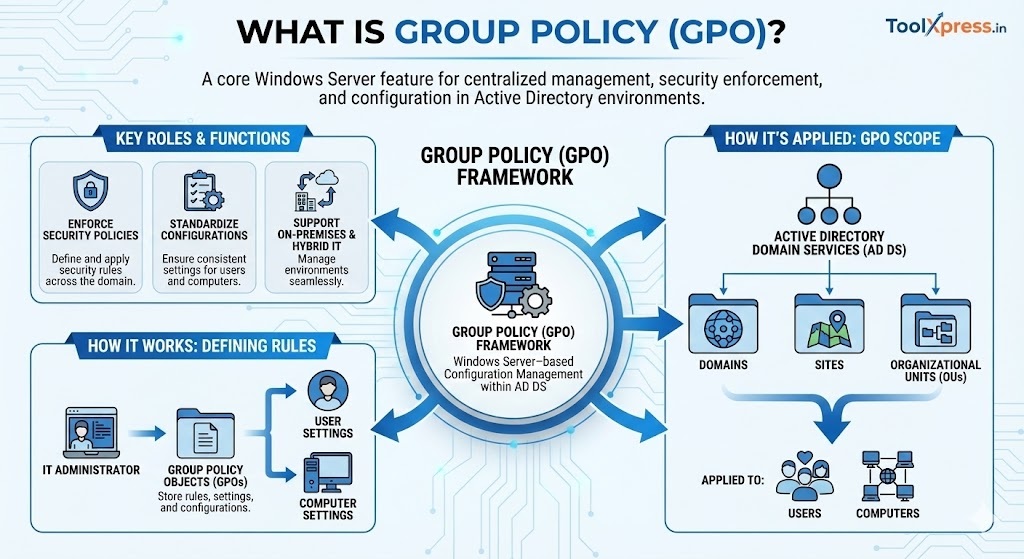
Group Policy settings are stored in Group Policy Objects (GPOs) and applied to domains, sites, or organizational units (OUs).
Why is Group Policy Important?
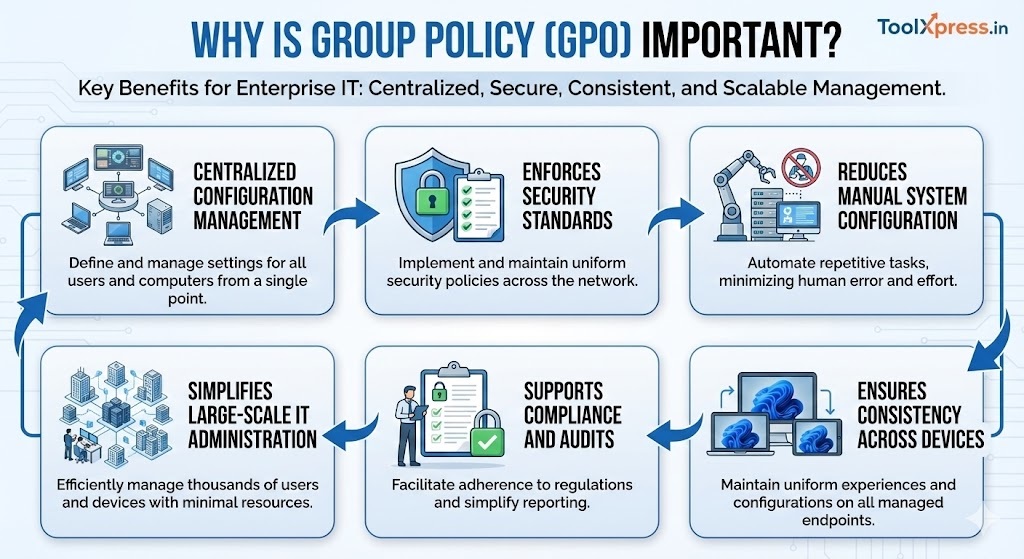
- Centralized configuration management
- Enforces security standards
- Reduces manual system configuration
- Ensures consistency across devices
- Supports compliance and audits
- Simplifies large-scale IT administration
How Does Group Policy Work?
Group Policy works by applying GPOs during:
- Computer startup
- User logon
- Background refresh intervals

GPO Scope of Management
- Site
- Domain
- Organizational Unit (OU)
Types of Policies
- Computer Configuration – Applies to devices
- User Configuration – Applies to user profiles
Group Policies are processed in the order: Local → Site → Domain → OU (LSDOU).
Principle of Group Policy
Group Policy follows these core principles:
- Centralized Control – One policy, many systems
- Least Privilege – Restrict unnecessary access
- Consistency – Uniform settings across users/devices
- Automation – Reduce manual administrative effort
- Security Enforcement – Prevent misconfigurations
Configuration Steps for Group Policy (GPO)

Step 1: Open Group Policy Management
- Launch Group Policy Management Console (GPMC)
Step 2: Create a New GPO
- Right-click domain or OU
- Select Create a GPO and Link it here
Step 3: Edit GPO Settings
- Configure:
- Password policies
- Desktop restrictions
- Software deployment
- Security settings
Step 4: Link GPO to OU
- Attach GPO to the correct OU
- Use security filtering if required
Step 5: Test and Apply
- Run
gpupdate /force - Verify using
gpresult /r
Group Policy in a Hybrid Environment
In modern hybrid IT environments, Group Policy works alongside cloud-based management tools.
Hybrid Integration Components
- On-prem AD DS with GPOs
- Azure AD (Microsoft Entra ID)
- Intune (Endpoint Manager)
- Hybrid Azure AD Joined devices

Hybrid Use Case
- GPO manages traditional Windows settings
- Intune manages cloud-based and mobile policies
- Gradual migration from GPO to MDM policies
Real-World GPO Use Cases

1. Enforcing Security Policies
- Password complexity
- Account lockout rules
- Firewall configurations
2. Desktop Standardization
- Disable USB access
- Lock down Control Panel
- Set desktop wallpapers
3. Software Deployment
- Install antivirus or business applications
- Push updates automatically
4. Hybrid Device Management
- On-prem GPO + Intune policies for remote users
Daily Basis Issues with Group Policy
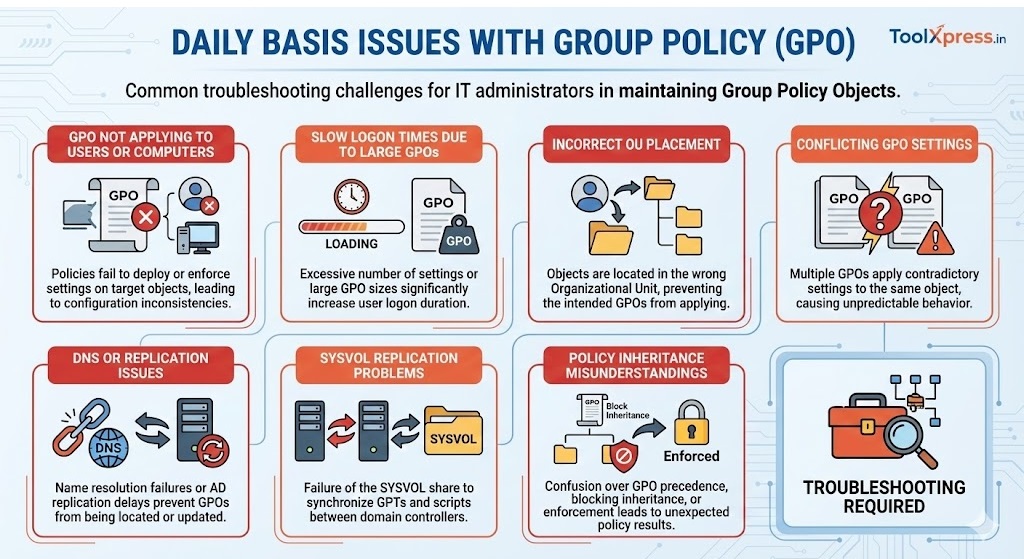
- GPO not applying to users or computers
- Slow logon times due to large GPOs
- Incorrect OU placement
- Conflicting GPO settings
- DNS or replication issues
- SYSVOL replication problems
- Policy inheritance misunderstandings
Pros of Group Policy
- Centralized and scalable management
- Strong security enforcement
- Deep Windows integration
- Reduces configuration errors
- Supports automation and compliance
Cons and Challenges
- Complex troubleshooting
- Requires proper OU design
- Not ideal for non-domain devices
- Limited support for non-Windows systems
- Hybrid environments require dual management
Best GPO Practices

- Keep GPOs simple and well-documented
- Use descriptive naming conventions
- Avoid excessive GPOs
- Test policies before production rollout
- Monitor GPO impact on performance
- Plan gradual migration to Intune where applicable