

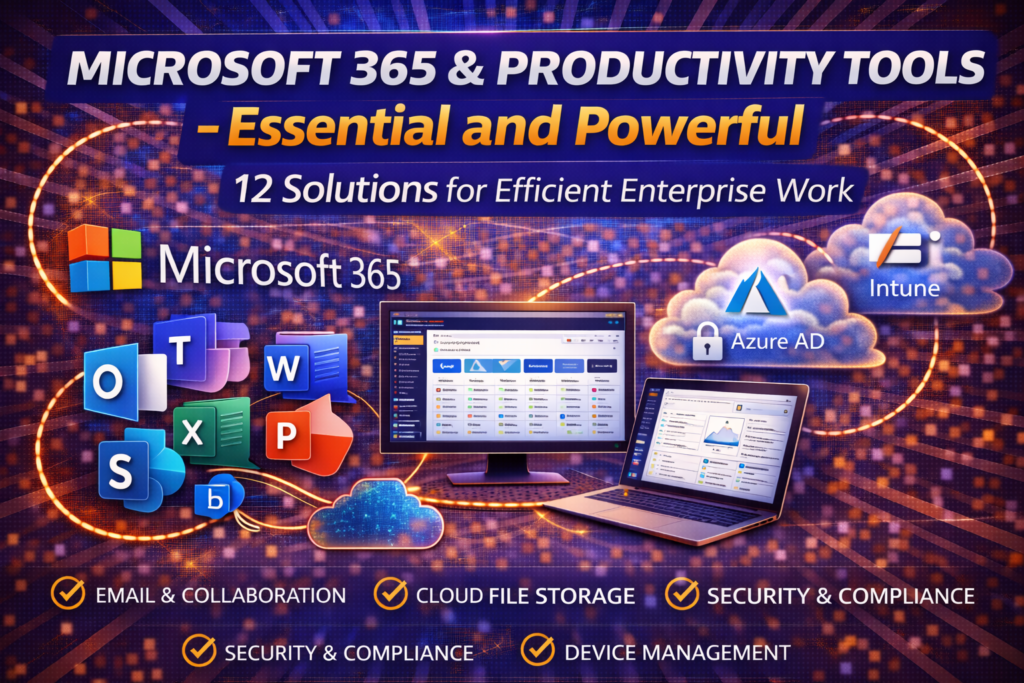


Microsoft 365 & Productivity Tools – Essential and Powerful 12 Solutions for Efficient Enterprise Work


What is Microsoft 365 & Productivity Tools
Microsoft 365 & Productivity Tools refer to Microsoft’s cloud-based suite of applications and services designed to enhance collaboration, communication, security, and productivity across organizations. It includes tools such as Microsoft Outlook, Teams, SharePoint, OneDrive, Word, Excel, PowerPoint, Exchange Online, and Intune.
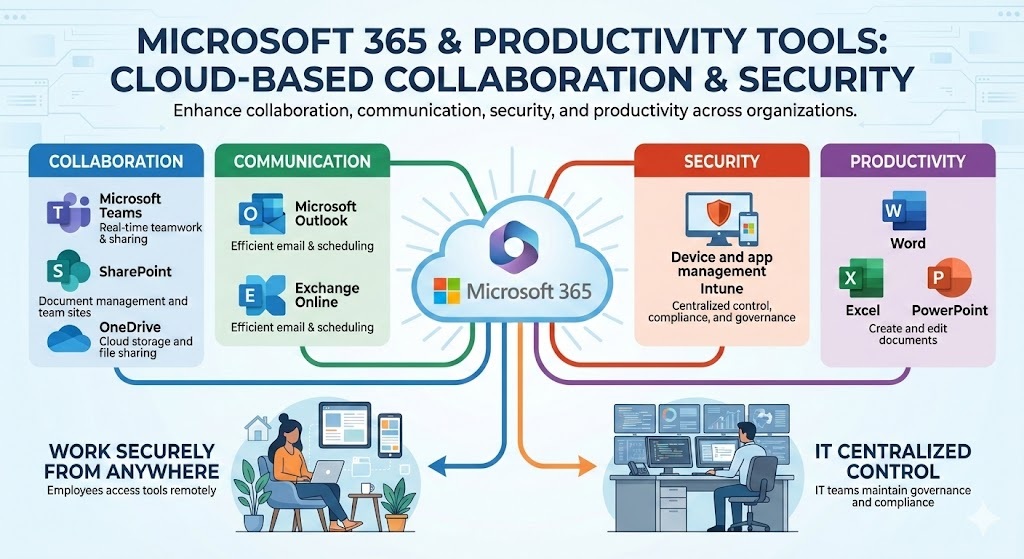
These tools enable employees to work securely from anywhere while IT teams maintain centralized control, compliance, and governance.
Why is Microsoft 365 & Productivity Tools Important
Microsoft 365 & Productivity Tools are critical for modern enterprises because they:
- Enable remote and hybrid work
- Improve team collaboration and communication
- Provide enterprise-grade security
- Reduce dependency on on-prem infrastructure
- Ensure business continuity
- Increase employee productivity
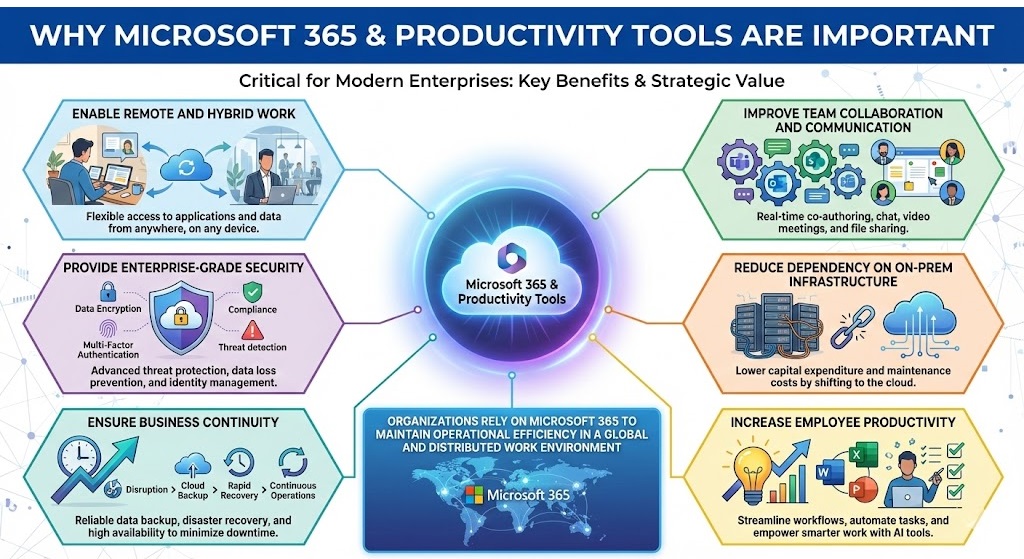
Organizations rely on Microsoft 365 to maintain operational efficiency in a global and distributed work environment.
How Microsoft 365 & Productivity Tools Works
Microsoft 365 operates as a cloud-first platform:
- Identity Management via Azure Active Directory (Entra ID)
- Email & Collaboration via Exchange Online and Microsoft Teams
- Document Management via SharePoint and OneDrive
- Endpoint Management via Intune
- Security & Compliance via Defender and Purview
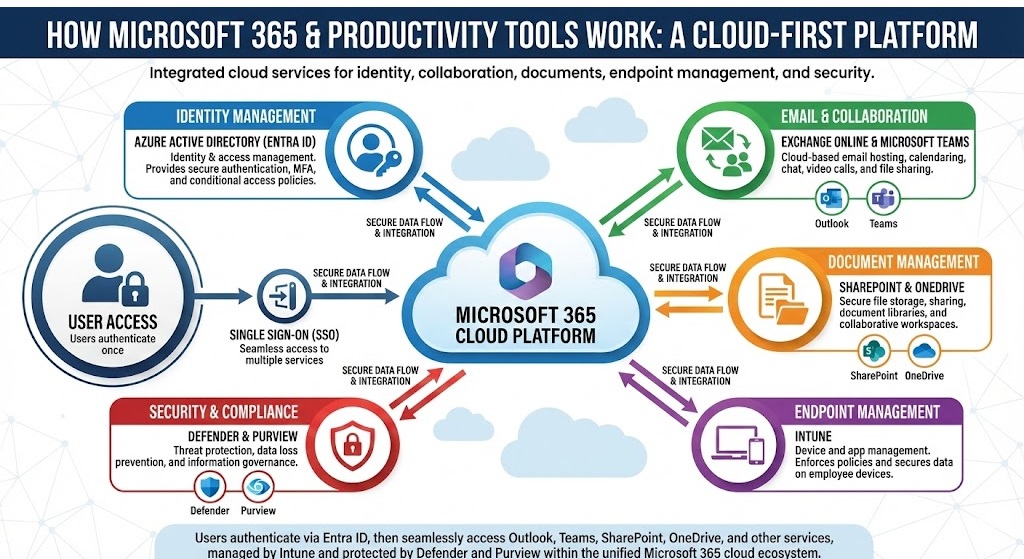
Users authenticate once and access multiple services using Single Sign-On (SSO).
Principle of Microsoft 365 & Productivity Tools

Key principles include:
- Cloud-First Architecture
- Security by Default (MFA, Conditional Access)
- Collaboration-Centric Design
- Scalability and High Availability
- Centralized Management
- Compliance and Data Protection
Configuration Steps
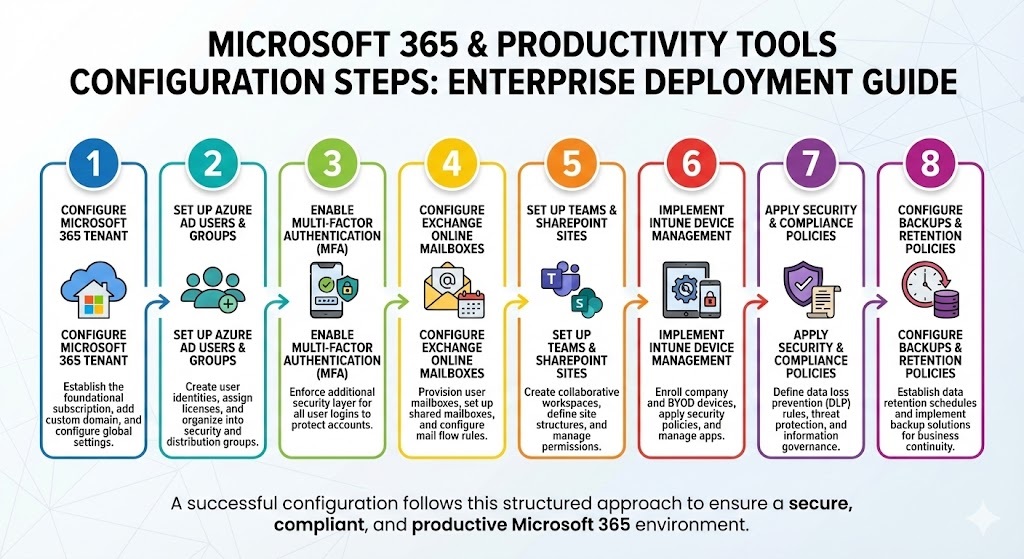
Typical enterprise configuration steps include:
- Configure Microsoft 365 tenant
- Set up Azure AD users and groups
- Enable Multi-Factor Authentication
- Configure Exchange Online mailboxes
- Set up Teams and SharePoint sites
- Implement Intune for device management
- Apply security and compliance policies
- Configure backups and retention policies
Microsoft 365 & Productivity Tools in Hybrid Environment
In hybrid environments:
- On-prem Active Directory syncs with Azure AD using AD Connect
- Exchange Hybrid enables coexistence between on-prem Exchange and Exchange Online
- Group PolicyDevices are managed using Group Policy + Intune
- Files are synced using OneDrive and SharePoint
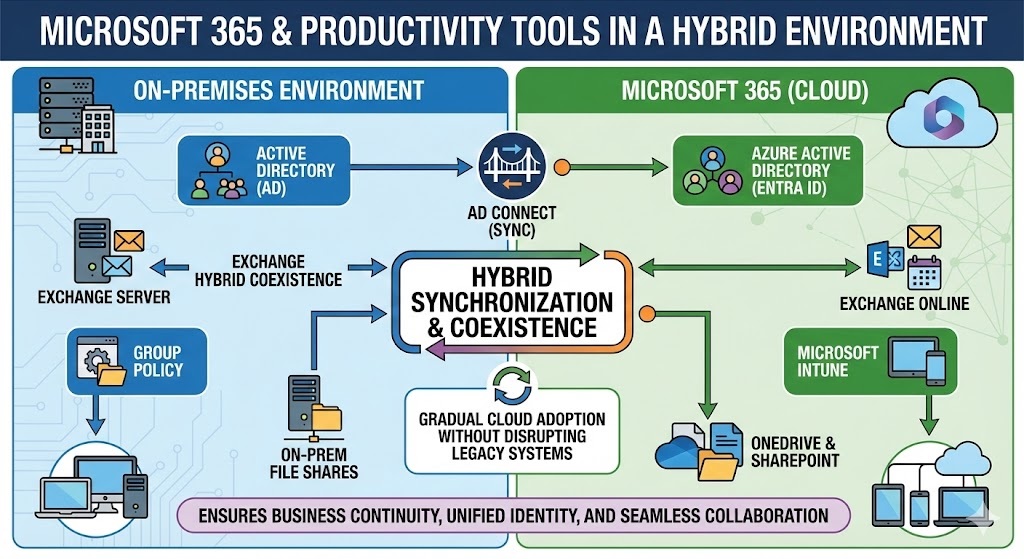
This allows gradual cloud adoption without disrupting legacy systems.
Real-World Use Case
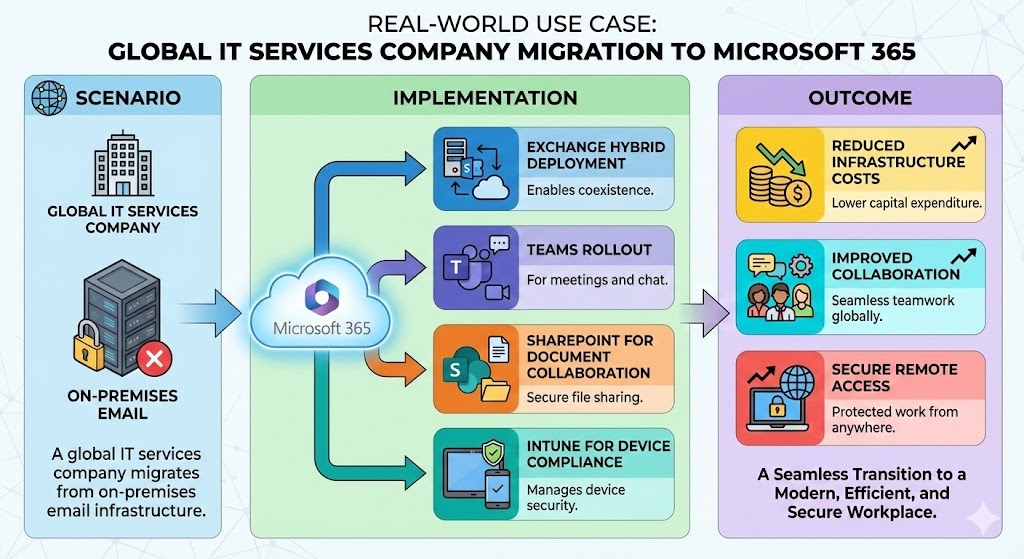
Scenario:
A global IT services company migrates from on-prem email to Microsoft 365.
Implementation:
- Exchange Hybrid deployment
- Teams rollout for meetings and chat
- SharePoint for document collaboration
- Intune for device compliance
Outcome:
- Reduced infrastructure costs
- Improved collaboration
- Secure remote access
Daily Basis Issues Faced by IT Teams
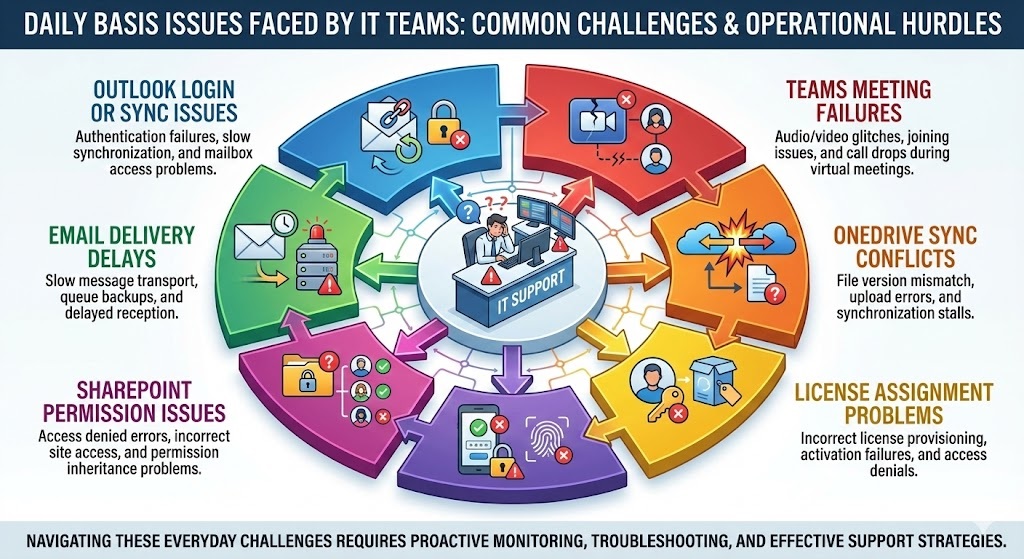
- Outlook login or sync issues
- Teams meeting failures
- OneDrive sync conflicts
- License assignment problems
- MFA-related login failures
- SharePoint permission issues
- Email delivery delays
Real Troubleshooting Scenarios (Step-by-Step)
Scenario 1: User Cannot Access Outlook
- Check Microsoft 365 service health
- Verify license assignment
- Test mailbox status in Exchange Admin Center
- Recreate Outlook profile
- Review sign-in logs in Azure AD
Scenario 2: Teams Not Working Properly
- Check Teams service status
- Clear Teams cache
- Validate network ports and firewall
- Reassign Teams license if needed

SLA Handling & Escalation Process
SLA Impact Explanation
| Priority | Issue Type | Response Time | Resolution Time | Escalation |
|---|---|---|---|---|
| P1 | Email/Teams outage | 15 mins | 4 hrs | L3 + Vendor |
| P2 | Multiple users affected | 30 mins | 8 hrs | L2 → L3 |
| P3 | Single user issue | 4 hrs | 24 hrs | L2 |
| P4 | Service request | 24 hrs | Planned | L1 |
Escalation may involve Microsoft Premier Support for critical outages.
Interview Questions & Answers
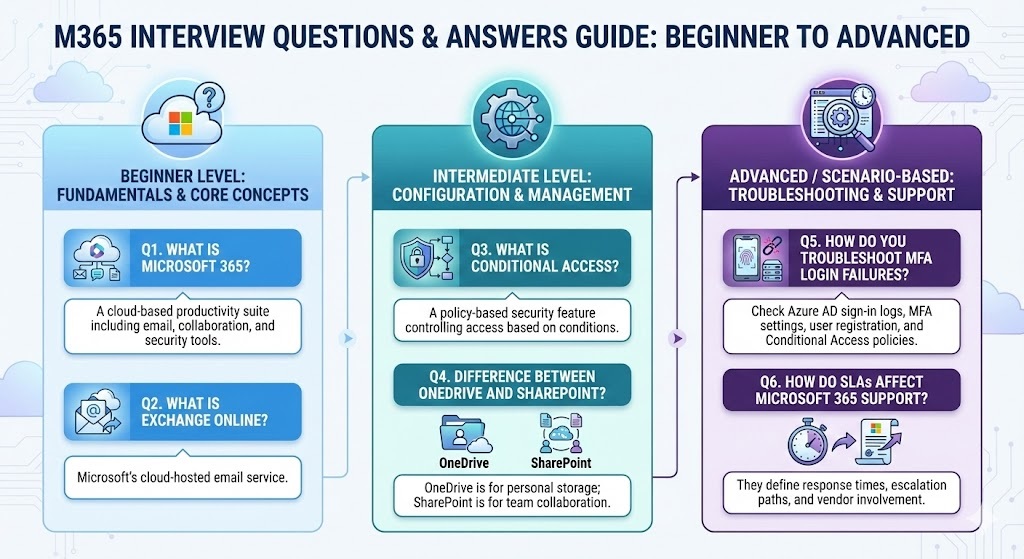
Beginner Level
Q1. What is Microsoft 365?
A cloud-based productivity suite including email, collaboration, and security tools.
Q2. What is Exchange Online?
Microsoft’s cloud-hosted email service.
Intermediate Level
Q3. What is Conditional Access?
A policy-based security feature controlling access based on conditions.
Q4. Difference between OneDrive and SharePoint?
OneDrive is for personal storage; SharePoint is for team collaboration.
Advanced / Scenario-Based
Q5. How do you troubleshoot MFA login failures?
Check Azure AD sign-in logs, MFA settings, user registration, and Conditional Access policies.
Q6. How do SLAs affect Microsoft 365 support?
They define response times, escalation paths, and vendor involvement.
Pros
- Highly scalable
- Secure by design
- Supports remote work
- Reduced infrastructure cost
- Centralized management
Cons
- Licensing costs
- Internet dependency
- Requires skilled administration
- Limited control compared to on-prem

